Content Browser
Content Browser
The Content Browser is your project's file management hub with an intuitive dual-pane interface for organizing scripts, images, and folders.
Overview
The Content Browser is located at the bottom of the editor window. It provides a visual way to organize your project files, create new content, and navigate between different scripts and assets.
Key Features:
- Create & Organize: Create folders, scripts (.sfe files), and import images (PNG, JPEG)
- Rename & Delete: Manage files with automatic reference updates throughout your project
- Duplicate Files: Quickly copy existing scripts
- Multi-Selection: Select multiple items with Ctrl+Click or Shift+Click
- Drag & Drop: Move files and folders by dragging them to new locations
- Change Tracking: See which files have unsaved changes with visual indicators
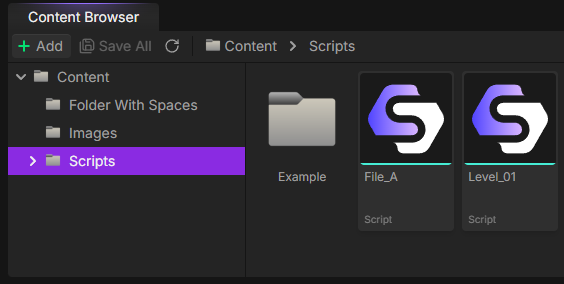
Interface
Dual-Pane Layout
The Content Browser uses a dual-pane design with a tree view (left) and folder view (right):
Tree View (Left Pane):
- Hierarchical folder structure you can expand/collapse
- Click folders to view their contents
- Current folder highlighted with purple background
Folder View (Right Pane):
- Shows all files and subfolders in the current directory
- Double-click files to open them
- Double-click folders to navigate into them
- Image files show thumbnail previews
Visual Indicators
- Yellow Asterisk (*): File has unsaved changes
- Teal Bottom Border: Script files (.sfe)
- Lime Bottom Border: Image files (PNG, JPEG)
Toolbar
- Add Button: Create folders, scripts, or import images
- Save All: Save all changed files at once (shows count)
- Refresh: Reload the folder structure
- Breadcrumb Path: Shows current location, click to navigate up
Resizable Interface
Resize the Content Browser by dragging the border with the canvas. Resize the tree/folder panes by dragging the divider between them. The editor remembers your layout preferences.
File Operations
Creating Content
Create Folders:
- Click "Add" → "Folder" or right-click empty space → "Add Folder"
- Type name and press Enter (Escape to cancel)
Create Scripts:
- Click "Add" → "Script"
- Type name (the .sfe extension is added automatically)
- New scripts include a Start node and End node by default
Import Images:
- Click "Add" → "Import Image"
- Select PNG or JPEG files from your computer
- Images are copied into your project folder
Renaming (F2)
Select a file or folder and press F2 (or right-click → Rename). Type the new name and press Enter.
Automatic Reference Updates
When you rename or move files, StoryFlow Editor automatically updates all references throughout your project - including Run Script nodes, dialogue images, open tabs, and the startup script setting. No broken links!
Deleting (Delete)
Select items and press Delete (or right-click → Delete). A confirmation dialog appears before deletion.
- Deletion is permanent and cannot be undone
- Open files are automatically closed
- Run Script node references are cleared
Duplicating Files
Right-click a file and select "Duplicate". A copy is created with "_01" appended to the name (or "_02", "_03", etc.).
Opening Files
Double-click a script file or press Enter to open it. Files open in new tabs at the top of the editor. Your viewport position (zoom and pan) is automatically restored when switching between files.
Saving Files
- Ctrl + S: Save the active file
- Save All: Save all changed files at once (button in toolbar or File menu)
Multi-Selection & Drag-Drop
Multi-Selection
Perform batch operations on multiple files and folders:
- Ctrl + Click: Toggle individual items on/off
- Shift + Click: Select a range from last selected to clicked item
- Delete multiple items at once
- Drag multiple items to move them together
Drag and Drop
Click and drag files or folders to move them:
- Drag from either tree view or folder view
- Drop onto folders in tree or folder view
- Valid drop targets show purple highlight
- Multi-selected items move together
- All references update automatically after moving
Move Restrictions
You cannot drag a folder into itself or its subfolders (circular moves are prevented). The root "Content" folder cannot be renamed or deleted.
Keyboard Shortcuts
| Shortcut | Action |
|---|---|
F2 |
Rename selected item |
Delete |
Delete selected item(s) |
Enter |
Open file or navigate into folder |
Ctrl + Click |
Toggle item selection (multi-select) |
Shift + Click |
Select range of items |
Ctrl + S |
Save active file |
Escape |
Cancel rename operation |
Automatic Reference Updates
When you rename or move files, StoryFlow Editor automatically updates all references throughout your entire project:
- Run Script Nodes: All nodes pointing to the file update to the new path
- Dialogue Images: Background image paths update in all dialogue nodes
- Open File Tabs: Tab titles update if the file is currently open
- Startup Script: Project setting updates if you rename/move the startup script
- Undo/Redo History: File references in history are updated
This means you can reorganize your project structure at any time without breaking existing connections or manually updating references.
Context Menu
Right-click files or folders to access operations like Open, Rename, Delete, Duplicate, and Show in File Explorer (opens Windows Explorer at that location).
Validation Rules
- Duplicate Names: Cannot create two items with the same name in the same folder
- Reserved Names: Certain filenames are reserved by the system (like "global-variables")
- Invalid Characters: Names cannot contain special characters reserved by Windows
- File Extensions: Extensions are preserved automatically during rename
Organization Tips
Create folders to organize by chapters, scenes, or features. Use descriptive script names like "ChapterOneIntro" or "MerchantConversation". Keep images in dedicated folders like "Backgrounds" or "Characters" for easy access.
Related Topics
→ Your First Project→ Dialogue Editor→ Visual Scripting→ Best Practices